
You open Outlook to write an email and suddenly — strange backward P symbols are scattered all over your text. Dots between every word. Arrows where tabs should be. It looks broken. It feels alarming.
But nothing is wrong with your email or your computer. Those symbols are called paragraph marks, and they are completely harmless formatting guides.
This guide will show you exactly how to remove paragraph symbols in Outlook — on every version, every device, permanently or temporarily — in plain, simple steps.
What Are Paragraph Symbols In Outlook?
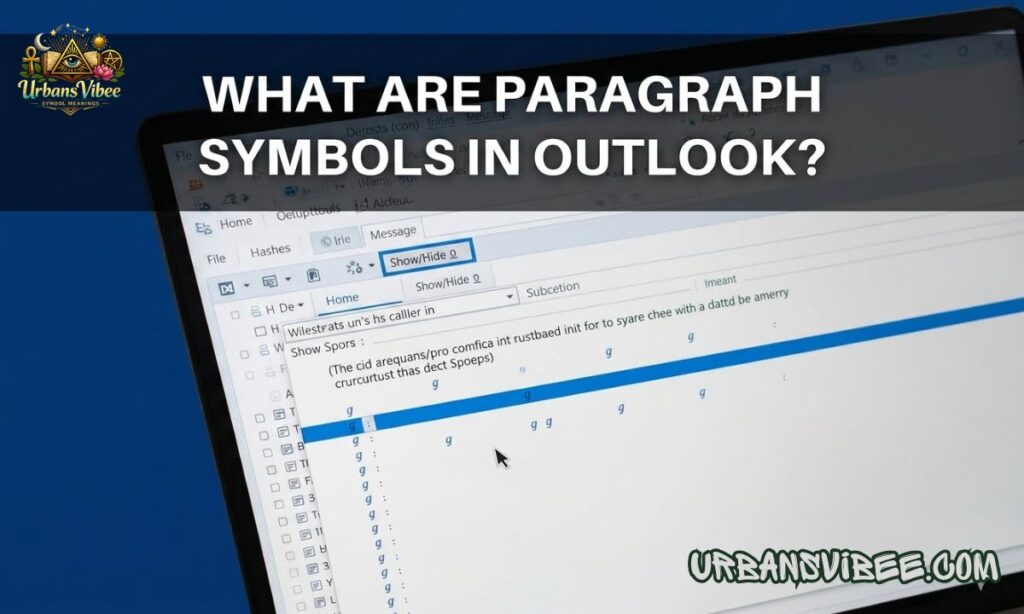
The paragraph symbol (¶) is technically called a pilcrow. It is a non-printing character — also known as a formatting mark — that Outlook uses to show you where paragraph breaks, line breaks, spaces, and tab characters exist inside your email draft.
These symbols only appear on your screen while you are composing or editing. They never print. They never show up in the email your recipient receives. They are invisible to everyone except you, unless the person on the other end has also manually enabled formatting marks on their own device.
Think of them as behind-the-scenes helpers. They reveal the hidden structure of your text — useful when troubleshooting layout problems, not useful when you just want to write a clean, distraction-free email.
In addition to the pilcrow (¶), formatting marks can include:
- Dots between words representing spaces
- Arrows representing tab characters
- Small symbols representing line breaks
- Dotted underlines showing hidden text
Why Paragraph Symbols Appear In Outlook & How To Turn Them Off
Why Do Paragraph Symbols Appear In Outlook
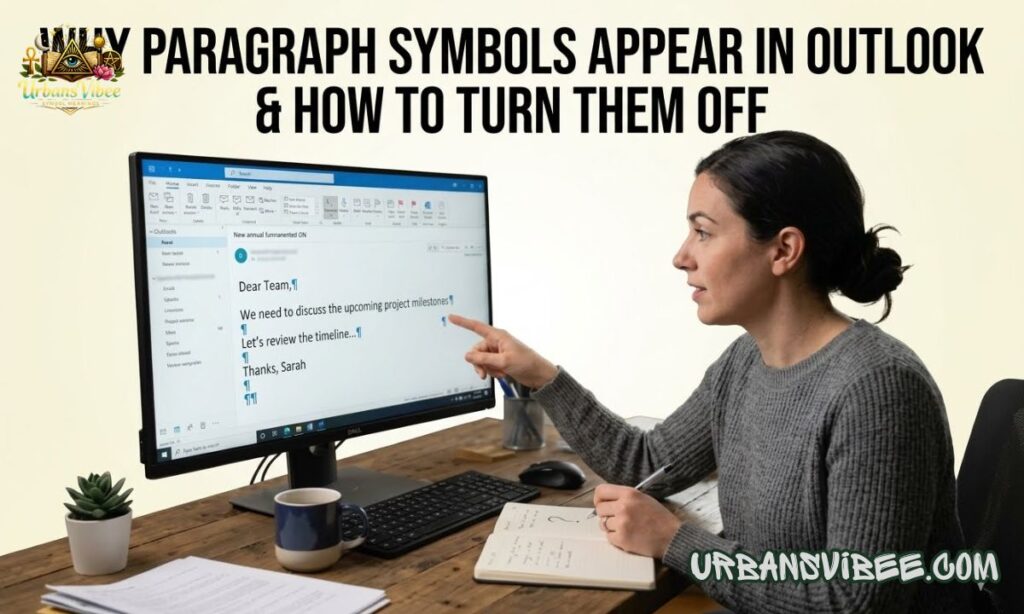
Paragraph symbols appear when formatting marks are enabled in Outlook. This usually happens because of one of these reasons:
- You accidentally pressed the keyboard shortcut Ctrl + Shift + 8 (or Ctrl + Shift + *) which toggles formatting marks on
- You clicked the ¶ (Show/Hide) button on the Format Text ribbon tab
- You pasted content from Microsoft Word, a website, or a CRM tool that carried formatting settings over
- Microsoft Word settings are influencing Outlook because Word is being used as the email editor backend
- A third-party Outlook add-in re-enabled formatting marks
- A corrupted rule or macro is triggering the display setting
The good news is that the fix is almost always one click or one keyboard shortcut.
Turn Off Formatting Marks Outlook
The fastest way to turn off all formatting marks in Outlook is the keyboard shortcut. While your cursor is inside the email body, press:
Ctrl + Shift + 8 (use the asterisk on the number 8 key, not the numpad)
This immediately toggles all formatting marks off. Press the same shortcut again to bring them back. This works in Classic Outlook for Windows across versions including Outlook 2010, 2013, 2016, 2019, 2021, and Microsoft 365.
How To Turn Off The Paragraph Symbol In Outlook
To turn off the paragraph symbol using the ribbon toolbar:
- Open a new email or open the draft where symbols are showing
- Click inside the email body
- Select the Format Text tab on the ribbon
- Look for the Paragraph group in the center of the ribbon
- Find the ¶ icon — if it is highlighted or shaded, formatting marks are currently active
- Click the ¶ icon once to toggle formatting marks off
The highlight disappears and all paragraph symbols vanish from the email body immediately.
Turn Off Paragraph Marks In Outlook
If the toolbar method feels too many steps, the shortcut is faster. Inside any Outlook compose window:
- Windows: Ctrl + Shift + 8
- Mac: Command + 8 (may vary by keyboard layout)
One press hides everything. One press brings it back. That is all there is to it for a temporary toggle.
How To Remove Paragraph Symbols In Outlook (All Versions & Devices)
How To Remove Paragraph Symbols In Outlook
The steps below cover Classic Outlook for Windows — the version included with Microsoft 365, Office 2016, Office 2019, and Office 2021:
- Open Outlook and click New Email
- Click inside the message body area
- Go to the Format Text tab on the top ribbon
- In the Paragraph section, click the ¶ button
- All formatting marks disappear instantly
That is the fastest visual method. No settings menus. No digging through options.
How To Remove Paragraph Marks In Outlook
For a permanent fix that stops paragraph marks from returning every time you open a new email:
- Open Outlook and click New Email
- Go to File → Options → Mail
- Under Compose messages, click Editor Options
- Select Display from the left sidebar
- Under Always show these formatting marks on the screen, uncheck Paragraph marks
- Also uncheck any other marks you want to hide (spaces, tabs, hidden text)
- Click OK, then OK again
These settings apply to all future messages — new emails, replies, and forwards — and will not reset unless you manually change them again.
How To Remove The Paragraph Symbol In Outlook
Both methods above — the toolbar toggle and the Editor Options settings — remove the paragraph symbol effectively. For a one-time fix, use the ¶ button or the keyboard shortcut. For a permanent solution, go through File → Options → Mail → Editor Options → Display and uncheck paragraph marks.
Outlook Remove Line Break Symbol
Line break symbols are also part of the formatting marks family. Turning off formatting marks using the ¶ toggle or unchecking the display settings removes line break symbols at the same time. There is no separate step needed specifically for line breaks.
How To Remove Paragraph Symbols In Outlook Emails
For emails you are actively composing, the quickest removal method is:
- Click inside the email body
- Press Ctrl + Shift + 8 on your keyboard
- All paragraph symbols, space dots, tab arrows, and line break markers disappear
For emails where symbols persist after pasting from outside sources, use Paste Special (Ctrl + Alt + V) and select Unformatted Text to strip all formatting from pasted content before it enters your email.
Outlook On The Web Clear Formatting Eraser Icon
In Outlook on the Web (OWA), the full Word-style formatting marks panel is not available. If you see formatting symbols in the web version, they may be real characters — not display-only marks. To clean them:
- Select all text in the email body (Ctrl + A)
- Look for the eraser icon (Clear Formatting) in the formatting toolbar above the message body
- Click it to strip all extra formatting from selected text
If the toolbar is collapsed, click the More Options (…) button in the compose bar to find the Turn Off Formatting Marks option.
Version-Specific Solutions (365, Mac, 2010–2021 & More)

How To Remove Paragraph Symbols In Outlook App
In the Outlook mobile app for iOS and Android, formatting marks are not supported at all. If you are seeing strange symbols in the mobile app, they are likely real characters that were pasted from another source — not display-only marks. Select and delete them manually, or use the clear formatting option in the app’s text editor.
How To Remove Paragraph Symbols In Outlook 365
For Microsoft 365 Outlook on Windows:
- Open a new email message
- Click the Format Text tab on the ribbon
- Click the ¶ icon in the Paragraph group to toggle marks off
- Or press Ctrl + Shift + 8 for the instant keyboard fix
For the permanent Outlook 365 fix, go to File → Options → Mail → Editor Options → Display and uncheck all unwanted formatting marks.
How To Remove Paragraph Symbols In Outlook Permanently
To permanently remove paragraph symbols in any desktop version of Outlook:
- Open Outlook → click New Email
- Navigate to File → Options → Mail
- Click Editor Options under Compose messages
- Go to Display in the left panel
- Uncheck Show all formatting marks
- Or individually uncheck: Paragraph marks, Spaces, Tab characters, Hidden text
- Click OK twice to save
Settings are saved globally and apply to every email you write from that point forward.
How To Remove Paragraph Symbols In Outlook Calendar
Paragraph symbols can sometimes appear in Outlook Calendar event descriptions. To remove them:
- Open the calendar event
- Click inside the event body/description
- Press Ctrl + Shift + 8 to toggle formatting marks off
- Or use the Format Text tab if it is visible in the event editor
Calendar events use the same Word-powered editor as email composition, so the same methods apply.
How To Remove Paragraph Symbols In Outlook 2021
In Outlook 2021, use the Format Text tab → ¶ button in the Paragraph group, or press Ctrl + Shift + 8. For permanent removal, go to File → Options → Mail → Editor Options → Display and uncheck paragraph marks.
How To Remove Paragraph Symbols In Outlook 2016
Outlook 2016 follows the same steps. Open a new email → Format Text tab → click ¶. For permanent removal, use File → Options → Mail → Editor Options → Display.
How To Remove Paragraph Symbols In Outlook 2020
There is no standalone Outlook 2020 version. If you are using Outlook in 2020, you are likely running Outlook 2019 or Microsoft 365. Use the ¶ toggle button on the Format Text ribbon or the Ctrl + Shift + 8 shortcut.
How To Remove Paragraph Symbols In Outlook 2010
Outlook 2010 uses the same Format Text → ¶ button approach. Go to File → Options → Mail → Editor Options → Display for permanent settings. The interface looks slightly different but the navigation path is identical.
How To Remove Paragraph Symbols In Outlook Mac
In Outlook for Mac (version 16.x and later):
- Open a new email
- Click inside the message body
- Go to the Format Text tab
- Click the ¶ symbol to toggle formatting marks off
In newer versions of Outlook for Mac, if the ¶ button is not visible on the toolbar:
- Click the See More Options (…) button — the three hollow dots on the right of the message menu bar
- Select Turn Off Formatting Marks from the dropdown menu
If marks keep returning on Mac, go to Outlook → Preferences → Composing and reset formatting preferences there.
Why Do Paragraph Symbols Suddenly Appear?
Sudden appearance of paragraph symbols is almost always caused by one of these triggers:
- Accidental Ctrl + Shift + 8 or **Ctrl + Shift + *** keystroke
- Pasting content from Word, Google Docs, or a web page
- A Microsoft Word setting syncing into Outlook’s shared editor
- An Outlook update resetting display preferences
- A third-party plugin or add-in reactivating formatting marks
How To Remove Paragraph Symbols In Outlook Desktop App
Method 1: Use The Toolbar Button
- Open Outlook desktop app
- Click New Email or open a draft
- Click inside the body of the email
- Select the Format Text tab from the ribbon
- Click the ¶ button in the Paragraph group — one click removes all marks
Method 2: Use Keyboard Shortcut
- Click inside the email body
- Press Ctrl + Shift + 8 (Windows) or Command + 8 (Mac)
- All formatting marks toggle off immediately
How To Remove Paragraph Symbols In Outlook 365
Already covered above under the version-specific section. Use the Format Text ribbon → ¶ button, or use Ctrl + Shift + 8, or go through File → Options for a permanent setting.
How To Remove Paragraph Symbols In Outlook Web Version
Outlook on the Web (OWA) does not have full formatting mark controls. If symbols appear:
- Select all the text in the email body
- Click the Clear Formatting eraser icon in the formatting toolbar
- Or click More Options (…) in the compose bar and look for Turn Off Formatting Marks
If the marks are real characters (not display-only), you will need to manually select and delete them or paste the content as plain text using Ctrl + Shift + V.
How To Remove Paragraph Symbols In Outlook Mac
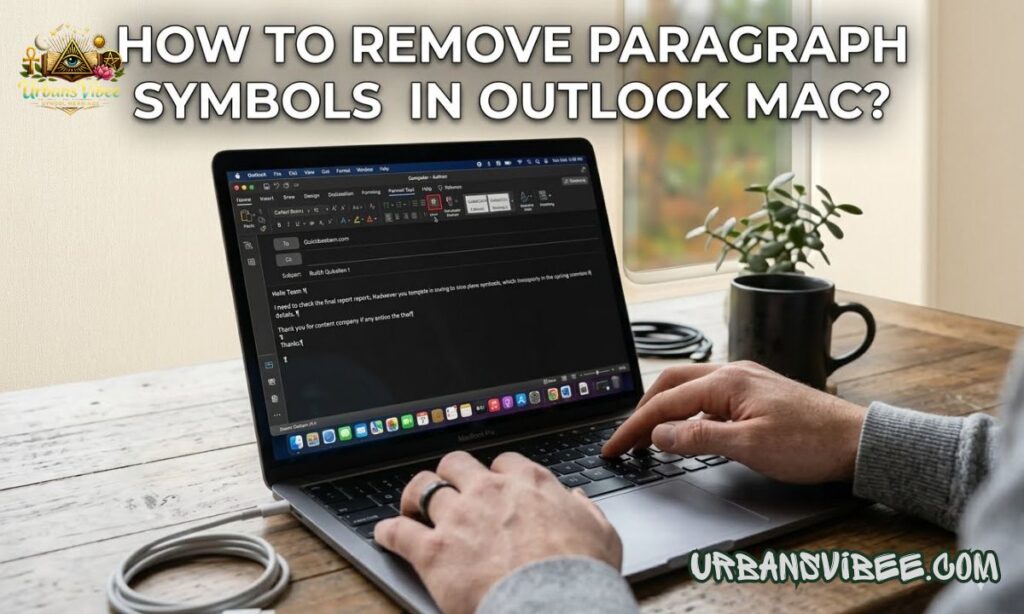
Already covered above. The core method for Mac is the Format Text → ¶ toggle, or More Options (…) → Turn Off Formatting Marks in newer Mac versions. If problems persist, reset composing preferences at Outlook → Preferences → Composing.
If Paragraph Symbols Won’t Disappear
If formatting marks keep coming back after you toggle them off, try these troubleshooting steps:
Change Email Format
Plain Text emails do not support formatting marks. If you are composing in Plain Text mode and still seeing marks, switch to HTML format:
- In the compose window, go to Format Text tab
- Click HTML in the Format group
- Marks should no longer persist in HTML mode
Clear Formatting
Select all text in the email body with Ctrl + A, then click the Clear Formatting button (eraser icon on the ribbon or in the text toolbar). This strips hidden formatting codes that may be re-triggering paragraph marks.
Paste Without Formatting
When pasting content from external sources, always paste without formatting:
- Use Ctrl + Shift + V in Outlook to paste as plain text
- Or right-click → Paste Special → Unformatted Text
- This prevents pasted content from bringing its own formatting marks into your email
Do Paragraph Symbols Show To Email Recipients?
No. Paragraph symbols are non-printing characters. They exist only in your editing view. When you send the email, the recipient sees clean, normal text — no ¶ symbols, no space dots, no tab arrows.
Even if you forget to turn them off before sending, the recipient will never see them. The only exception is if the marks were pasted as actual visible characters from another source, which is rare and easy to spot because they would not disappear when you press Ctrl + Shift + 8.
Why Outlook Uses Paragraph Symbols
Microsoft built formatting marks into Outlook because its email composer uses the Microsoft Word rendering engine as its backend. Word has always used these marks for precise document editing. When Outlook inherited the Word editor, the formatting marks feature came along with it.
For power users — editors, administrators, business writers — these marks are genuinely useful for spotting double spaces, fixing alignment, and cleaning up pasted content. For everyday users, they are usually an unexpected surprise that is easy to fix once you know the shortcut.
Common Formatting Issues Caused By Paragraph Marks
Paragraph marks themselves do not cause formatting problems — they reveal them. When you see a paragraph mark, it tells you exactly where a hard return exists in your text. Common issues they expose include:
- Extra blank lines — caused by pressing Enter too many times between paragraphs
- Unwanted spacing — visible as multiple ¶ symbols stacked vertically
- Tab misalignment — shown as arrow characters pointing right
- Pasted content with broken spacing — shows as irregular dots and mixed marks
Once you spot the issue through the formatting marks, you can fix the underlying spacing problem and then toggle marks off again.
Best Practices To Avoid Formatting Problems In Outlook
Follow these habits to keep your Outlook emails clean and symbol-free:
- Always paste external content using Ctrl + Shift + V (Paste as Plain Text)
- Set your permanent formatting mark preferences once through File → Options → Mail → Editor Options → Display
- Avoid using Enter repeatedly to create spacing — use paragraph spacing settings instead
- Keep Outlook updated to the latest version through Microsoft 365 to avoid setting resets
- Disable add-ins that are not essential, as some third-party tools interfere with display preferences
- If working between Word and Outlook, check Word’s display settings separately under File → Options → Display
Conclusion
Paragraph symbols in Outlook are harmless formatting guides that only you can see. They never reach your email recipients. They appear because formatting marks were enabled — accidentally or through a setting — and removing them is usually a single keyboard shortcut or one toolbar click away.
For users who want a permanent fix, the Editor Options settings inside Outlook give you full control over which marks display and which stay hidden. Whether you use Classic Outlook, Outlook 365, Outlook for Mac, or the web version, every fix is covered above. Clean emails take seconds to restore. Now you know exactly how to do it.
Frequently Asked Questions
What is the quickest way to remove paragraph symbols in Outlook?
Press Ctrl + Shift + 8 while your cursor is inside the email body — this instantly toggles all formatting marks off in Classic Outlook for Windows.
Will recipients see paragraph symbols in my email?
No. Paragraph symbols are non-printing formatting marks that are only visible to you while composing. They never appear in the sent email.
How do I permanently turn off paragraph marks in Outlook?
Go to File → Options → Mail → Editor Options → Display and uncheck Paragraph marks (and any other formatting marks you want to hide permanently).
Why do paragraph symbols keep coming back in Outlook?
They usually return because a Word setting, third-party add-in, or pasted content is re-enabling formatting marks. Fix it permanently through Editor Options or by disabling interfering add-ins.
How do I remove paragraph symbols in Outlook for Mac?
Go to the Format Text tab and click the ¶ button, or click the More Options (…) menu in the compose bar and select Turn Off Formatting Marks.
Is Ctrl + Shift + 8 the same as Ctrl + Shift + * in Outlook?
Yes — on most keyboards, the asterisk (*) is on the number 8 key, so both shortcuts refer to the same key combination.
Do paragraph symbols appear in Outlook mobile apps?
No. The Outlook app for iOS and Android does not support formatting marks. If you see symbols in the mobile app, they are real characters that need to be deleted manually.
How do I remove line break symbols in Outlook?
Line break symbols are part of the same formatting marks group. Pressing Ctrl + Shift + 8 or clicking the ¶ button removes them along with all other formatting marks.
Can I remove paragraph symbols in Outlook Web (OWA)?
Yes. In Outlook on the Web, use the Clear Formatting eraser icon in the toolbar, or click More Options (…) in the compose bar and select Turn Off Formatting Marks.
Why does pasting from Word add paragraph symbols in Outlook?
Word content carries its own formatting codes, including paragraph marks. To avoid this, always paste using Ctrl + Shift + V to paste as plain unformatted text.

Stephen Miller is a language enthusiast and symbol researcher at UrbansVibee. He specializes in uncovering the meanings, origins, and cultural significance of symbols, helping readers understand signs, icons, and symbolism from around the world.